Install YepExpress and sign in
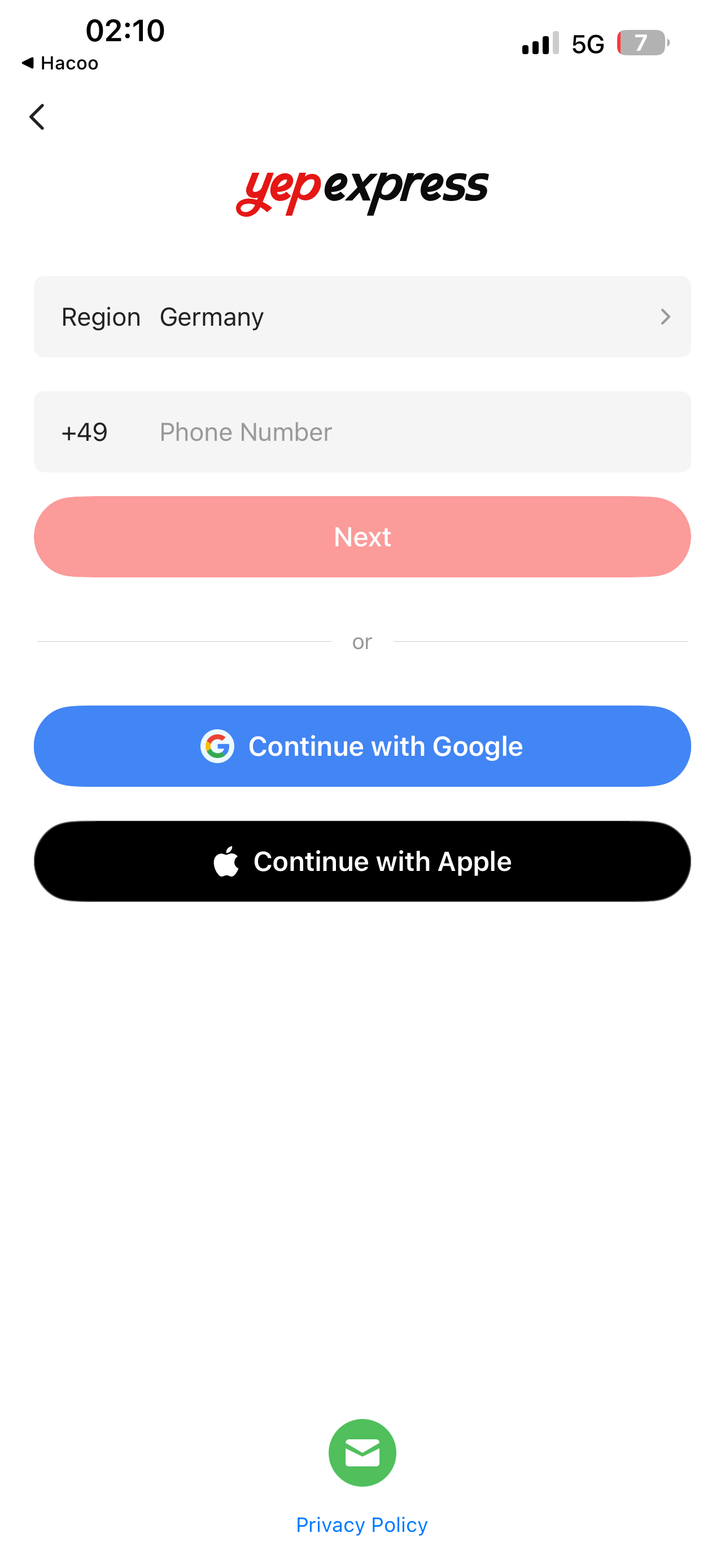
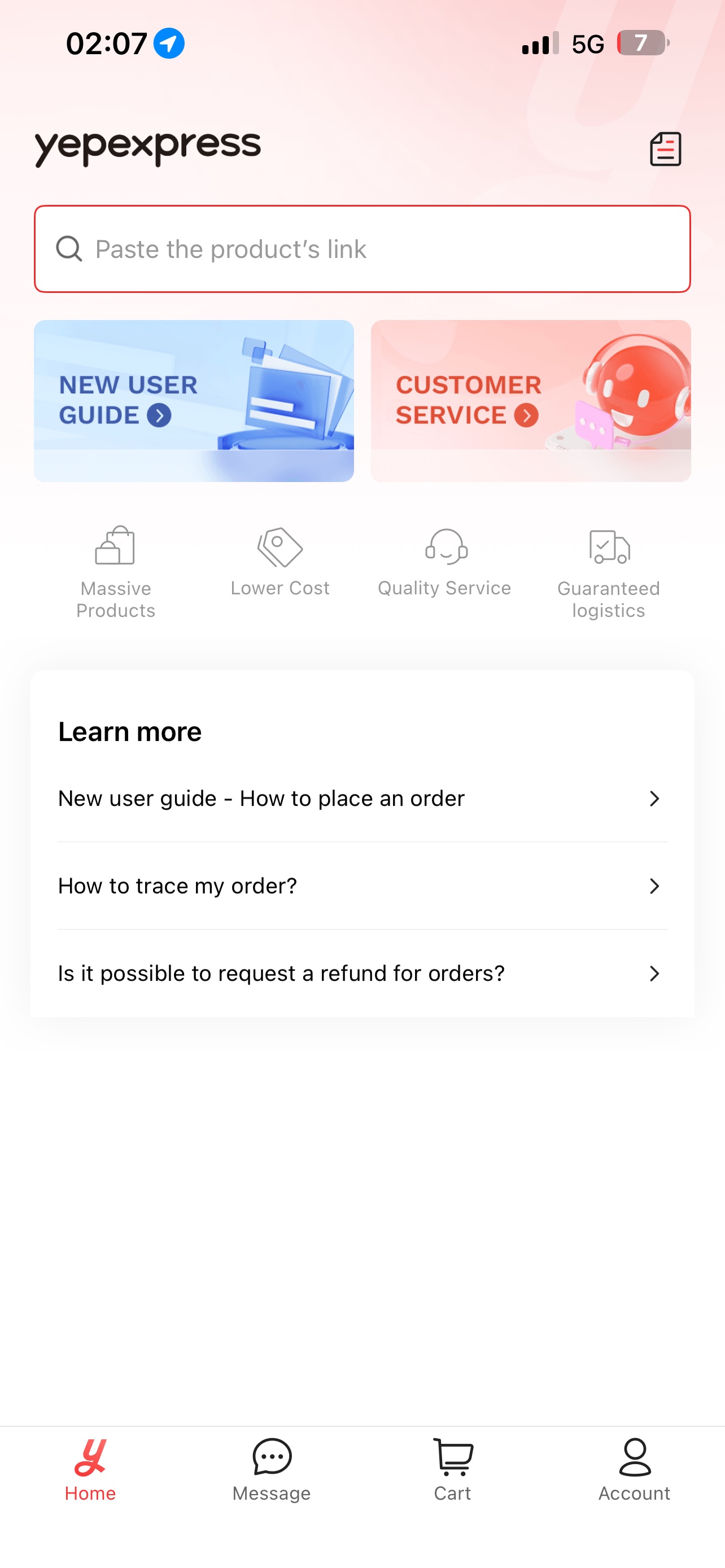
Open YepExpress, choose your real delivery country and sign in with your phone number, Google or Apple. The home screen with the link field appears after sign-in.
Hacoo → YepExpress
YepExpress is only used for items marked (YepExpress). This complete route uses real iPhone screens and does not skip the Shop Now handoff.
Check the item label
If an item is not marked (YepExpress), it should open and be ordered normally in Hacoo. Do not paste ordinary Hacoo item links into YepExpress.
Open YepExpress, choose your real delivery country and sign in with your phone number, Google or Apple. The home screen with the link field appears after sign-in.
In Miralo Links, tap an item whose title includes (YepExpress). The link opens that item’s post inside Hacoo.
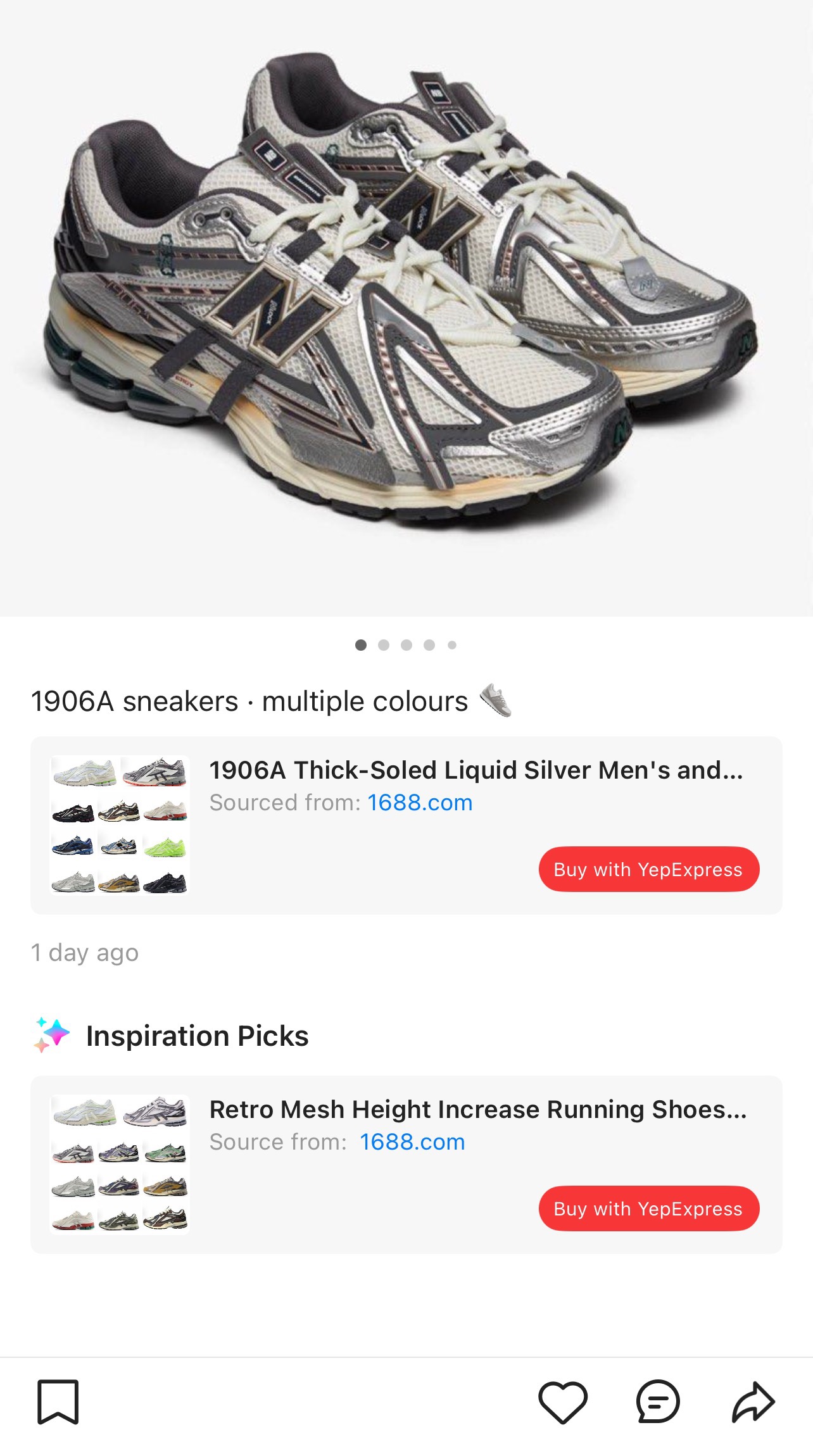
In the Hacoo post, find the main card labelled Sourced from: 1688.com or Taobao and tap the red Buy with YepExpress button. Do not select a similar item under Inspiration Picks.
Hacoo shows an intermediate screen with the source item, price and Shop Now button. Check the photo and tap Shop Now to continue into YepExpress.

Check the photos, title, current price and available options. If a different item opens, go back and do not place the order.
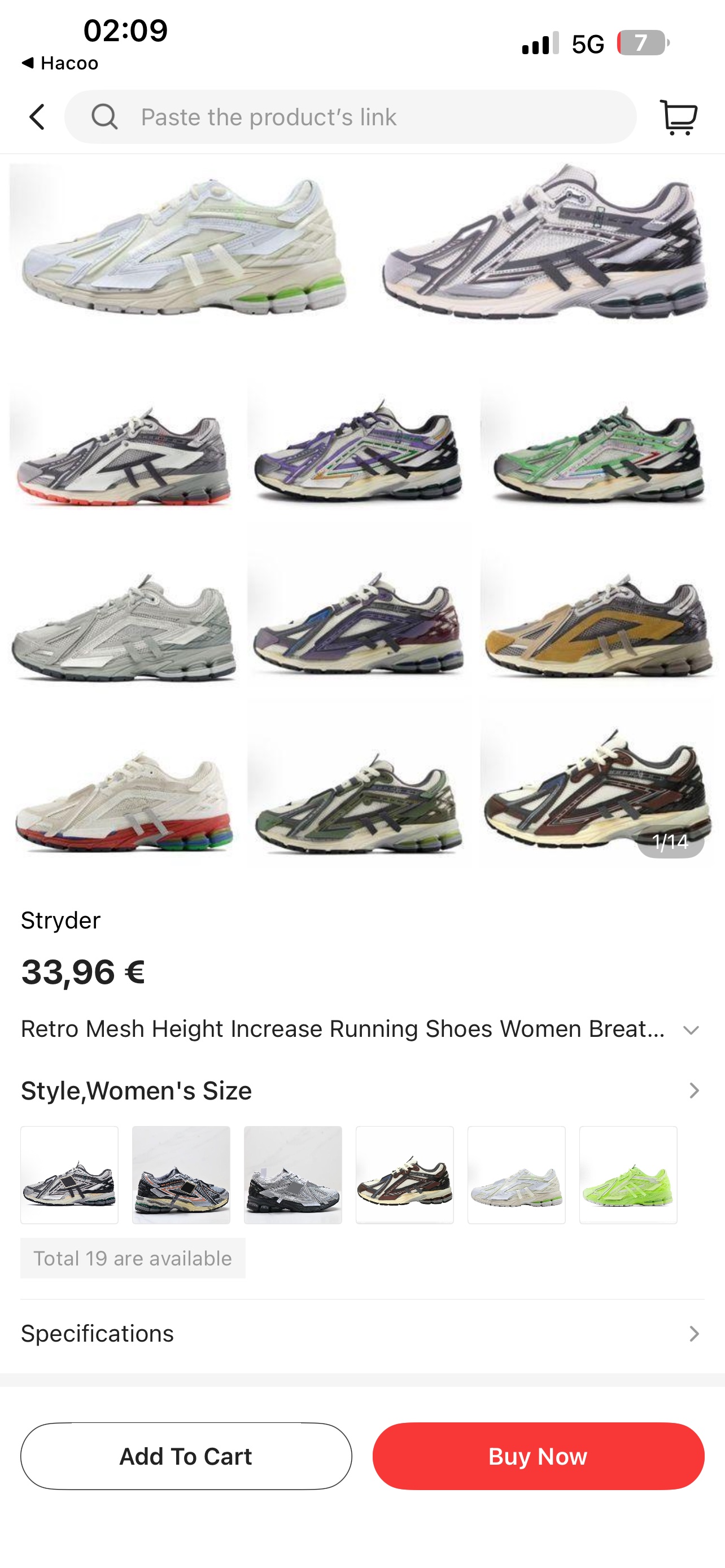
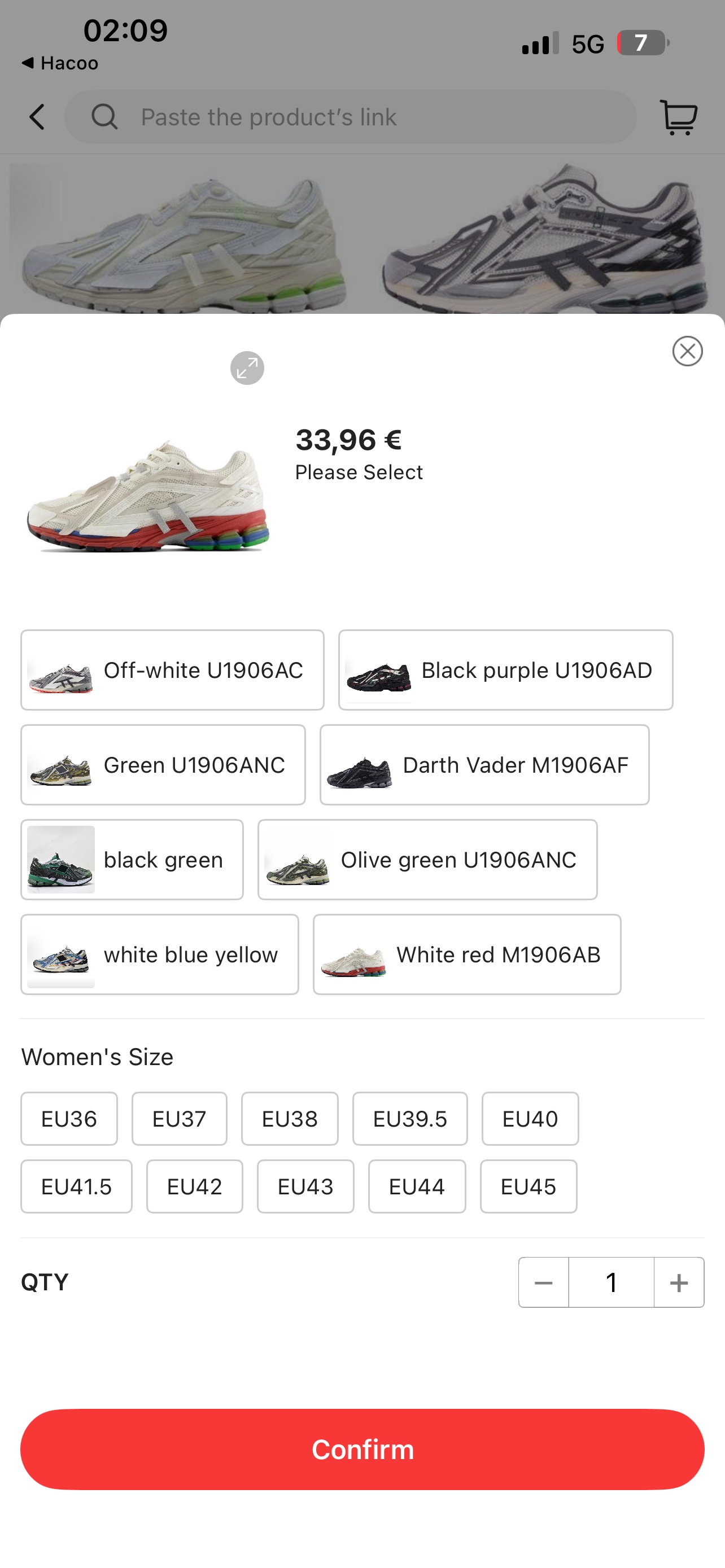
Tap Buy Now or Add To Cart, select the exact variant, size and quantity, then tap Confirm. Variant names matter more than the first image.
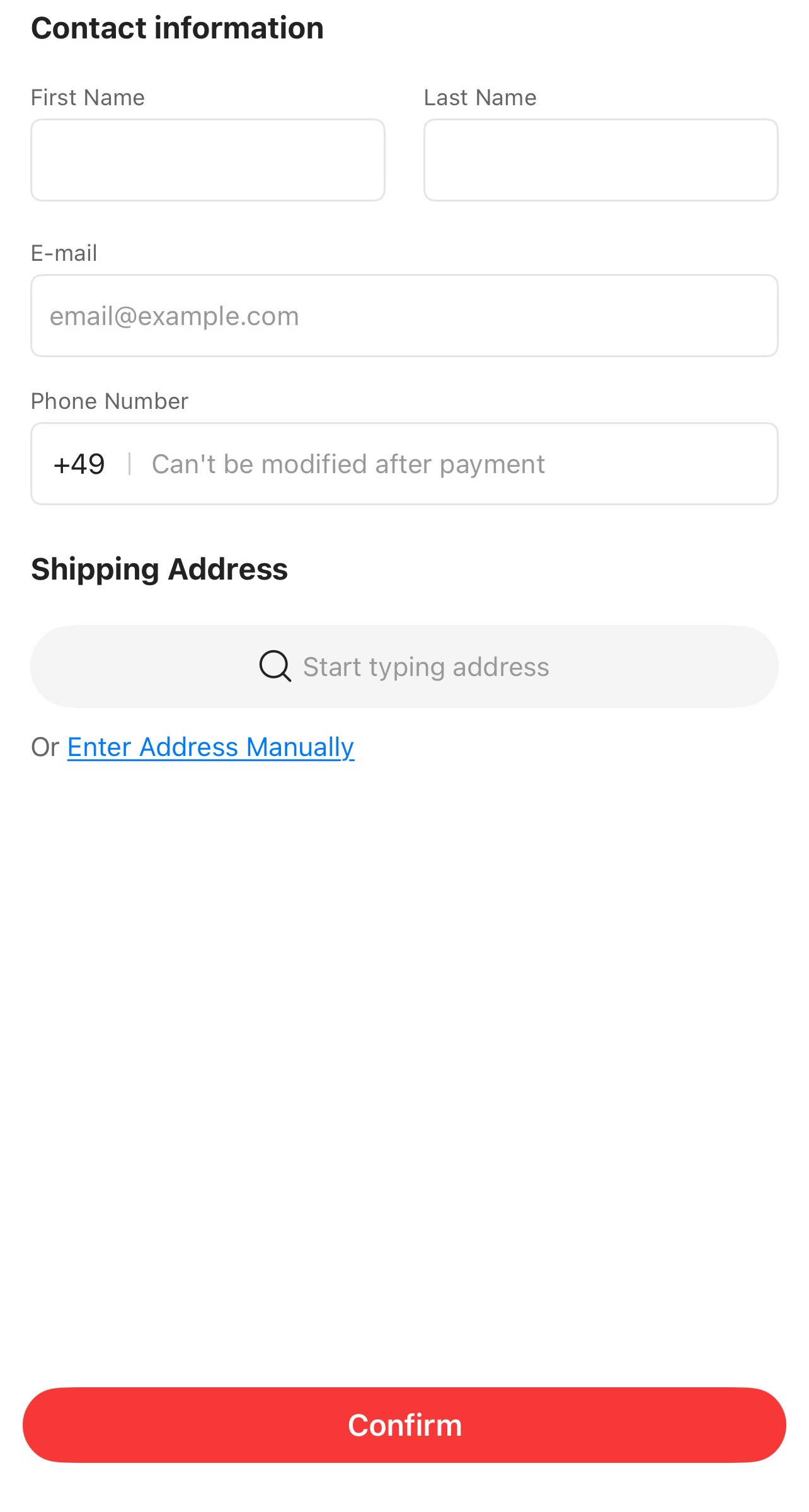
Enter your name, email, phone and delivery address. Before paying on the next screen, verify the item, delivery, fees and full total. Track the purchase under Cart or Account → Orders.
Stop if Buy with YepExpress is missing, “No items found” appears, another item opens, your size is unavailable or the final total is not acceptable. Return to Miralo Links and report the affected item link.
These are real Hacoo and YepExpress screens on iPhone. Controls may move slightly after an app update.